

LiteSpeed Cache WordPress Optimization: Beyond the Basic Settings
If your host isn’t running LiteSpeed Web Server (LSWS) or OpenLiteSpeed on the backend, the LiteSpeed Cache plugin is 50% useless to you. It needs the server-level engine to bypass PHP entirely. Without the server component, it’s just another PHP script generating static files, no better than WP Fastest Cache. With the server component, it’s the fastest WordPress caching solution on the planet. Period.
Analysis by the FussionHost Engineering Team.
Your WordPress site is sluggish. You see high Time To First Byte (TTFB) metrics in PageSpeed Insights. Your server CPU spikes every time you send a newsletter, and your current host is probably telling you to upgrade to a larger VPS.
Before you throw more RAM at the problem, you need to understand that WordPress is inherently inefficient. Every page request triggers PHP to fire up, connect to the database, execute dozens of queries, assemble HTML, and serve it. Doing this for every single visitor is madness.
Enter caching. But not all caching is created equal.
Most WordPress users slap a generic caching plugin on an Apache or Nginx server and call it a day. This is a band-aid. We are going to discuss the only architectural solution that makes sense for high-performance WordPress: LiteSpeed Cache (LSCache) integrated directly with the web server.
This isn’t a “beginner’s guide to clicking buttons.” This is a deep dive into configuring LSCache to handle real-world traffic loads, based on fifteen years of keeping servers alive when marketing campaigns go viral.
Here is what we will cover:
- The architecture: Why server-level caching destroys PHP-level caching.
- The “Preload” myth that is killing your server performance.
- Step-by-step configuration for peak throughput (caching rules, object cache, optimization).
- Using ESI (Edge Side Includes) for dynamic content.
3. The Deep Dive: Architecture and Protocol
The fundamental misunderstanding about the LiteSpeed Cache WordPress plugin is that people think the plugin does the caching. It doesn’t.
The plugin is merely a control panel—an interface. It communicates cache rules to the actual engine, which resides in the LiteSpeed Web Server core.
The Caching Hierarchy Failure
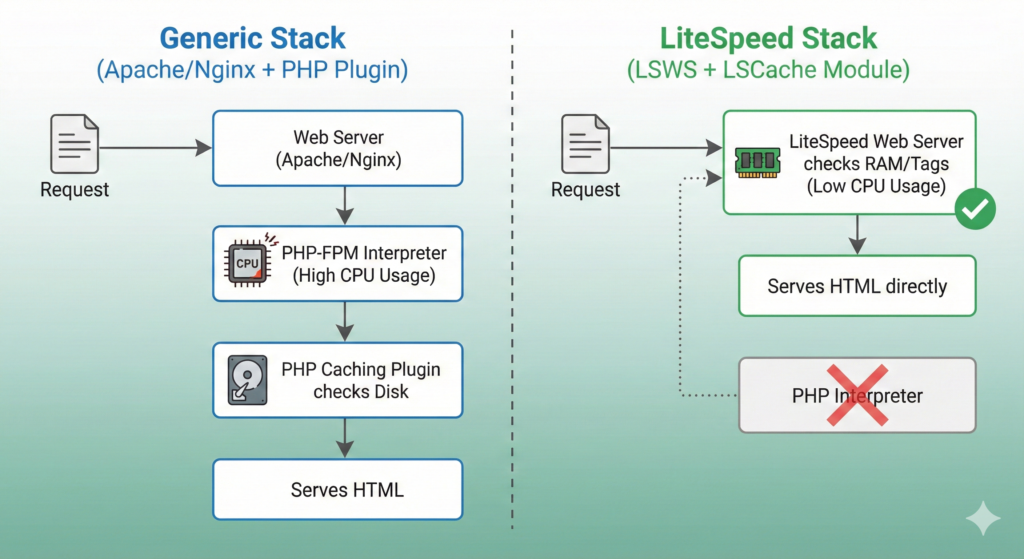
In a standard stack (Linux, Apache/Nginx, MySQL, PHP), when a request arrives, the web server hands it to PHP-FPM. PHP loads WordPress core, plugins, and the theme. Eventually, a PHP-based caching plugin intercepts this process and serves a pre-generated HTML file from the disk.
While better than no cache, this process still requires spawning a PHP process to execute the plugin code to find that HTML file. PHP is expensive in terms of CPU cycles and RAM overhead.
The LiteSpeed Advantage: Tag-Based Server Caching
LiteSpeed Web Server changes this flow. It utilizes an event-driven architecture designed for massive concurrency.
When you activate LSCache, the plugin communicates with the server via response headers. It tells the server: “Cache this page, and tag it with ID ‘post-123’.”
The next time someone requests that page, LiteSpeed Web Server checks its memory (or SSD storage) before it ever thinks about spawning a PHP process. If the content exists, LSWS serves it immediately. The request never touches the PHP interpreter. This results in a TTFB often under 50ms, regardless of how heavy your WordPress theme is.
Visualizing the Traffic Flow:
The Power of Smart Purging
The real magic isn’t caching; anyone can cache static HTML. The magic is purging.
When you update a post, how does the cache know to invalidate the homepage where that post is listed as a snippet? Generic plugins guess, often dumping the entire cache.
LiteSpeed uses a sophisticated tag-based system. When you edit “Post A”, the LSCache plugin tells the server, “Purge anything tagged ‘Post A’, ‘Category B’, and ‘Homepage’.” Only the relevant parts of the cache are dropped. This surgical precision keeps your cache hit rate high, ensuring consistent performance even on active sites.
Comparison: Standard vs. High Performance
| Metric | Standard PHP Caching (e.g., WP Rocket on Nginx) | LiteSpeed Server Caching |
| Mechanism | PHP script serves static file from disk. | Web server kernel serves from RAM/SSDs. |
| PHP Involvement | Required for every hit (to execute cache logic). | Zero PHP involvement on cache hits. |
| TTFB (Typical) | 200ms – 600ms | < 100ms (often < 50ms) |
| Context Handling | Difficult (often breaks with different currencies/devices). | Native support via Vary headers. |
| Purge Logic | Broad, often dumps too much. | Surgical, tag-based invalidation. |
4. The “Insider Secret”: The Preloading Trap
Here is something most hosting companies won’t tell you because it highlights the limitations of their infrastructure: Stop using cache preloading on shared or low-resource servers.
Every caching plugin, including LSCache, offers a “crawler” or “preload” feature. The idea sounds great: a bot crawls your site, generating cache files before real users arrive so nobody ever experiences a “cache miss.”
In reality, on a resource-constrained VPS or shared hosting environment, this is a DoS (Denial of Service) attack against yourself.
The crawler forces PHP to generate thousands of pages in rapid succession. This maxes out your allocated CPU cores and consumes massive amounts of I/O operations. If a real visitor arrives while your crawler is hammering the server, the server will be too busy to respond, leading to 503/504 gateway timeout errors.
The Engineer’s Approach to Crawling:
If you have high traffic and a powerful dedicated server, use the crawler. If you are on a 2GB VPS, leave it off. Let the cache build organically as users visit. A 500ms load time for the first visitor is better than a 5-second timeout for everyone because your crawler choked the CPU.
If you must use LSCache’s crawler, configure it defensively under Crawler > General Settings:
- Delay: Set to at least
5000(5 seconds between requests). - Run Duration: Short bursts, e.g.,
300seconds. - Interval Between Runs: Give the server a break, e.g.,
600seconds.
5. Implementation: The Engineer’s Configuration Protocol
Installing the plugin is easy. Configuring it for maximum throughput without breaking your site requires precision. Don’t just turn everything “ON”.
Phase 1: The Basics & Cache Rules
Navigate to LiteSpeed Cache > Cache.
- Enable Cache: ON.
- Cache Logged-in Users: OFF. (Unless you have a membership site and understand ESI—more on that later. Caching logged-in users is the fastest way to show one user’s private data to another if misconfigured).
- Cache Commenters: OFF.
- Cache REST API: ON. Vital for modern themes and the block editor.
- Cache Login Page: ON. This defends against brute-force attacks overloading PHP on
wp-login.php. - Cache Favicon.ico: ON.
Under the Purge tab, ensure “Auto Purge Rules For Publish/Update” is checked. The defaults here are usually sensible.
Phase 2: Object Cache (Redis/Memcached)
Page caching handles static HTML. Object caching handles database queries. If your site is dynamic (WooCommerce, bbPress, heavy filtering), Object Cache is mandatory.
It stores the results of expensive database queries in RAM (Redis or Memcached) so the database doesn’t have to re-calculate them on every page load.
Prerequisite: Your server must have Redis or Memcached installed and the corresponding PHP extension enabled. (We prefer Redis at FussionHost for its persistence capabilities).
- Navigate to LiteSpeed Cache > Cache > Object Cache.
- Object Cache: ON.
- Method: Redis (or Memcached depending on your server).
- Host/Port: Usually
localhostand6379(Redis) or11211(Memcached).
Crucial wp-config.php Step:
If you use Redis, add the salt key to your wp-config.php file before enabling it in the plugin. This prevents cache collisions if you host multiple sites on the same server.
PHP
// Add this above the "That's all, stop editing!" line
define( 'WP_CACHE_KEY_SALT', 'mysitename_' );
Phase 3: Page Optimization (CSS/JS)
This is where 90% of users break their sites. Tread carefully. The goal is to reduce the size of assets and defer non-critical JavaScript.
The Safe Bets (LiteSpeed Cache > Page Optimization):
- CSS Minify: ON.
- JS Minify: ON.
- HTML Minify: ON.
The Dangerous Territory (Proceed with Caution):
- CSS Combine / JS Combine: In the HTTP/2 and HTTP/3 era, combining files is less critical than it used to be because newer protocols allow multiplexing many small requests. Combining often leads to massive, render-blocking files and breaks functionality. Our advice: Keep OFF unless you know how to debug dependency conflicts.
- Load JS Deferred: ON. This moves JS execution until after the HTML is parsed. Vital for Core Web Vitals. If things break, you must identify the specific script handle and add it to the “JS Deferred/Delayed Excludes” list under the Tuning tab.
Phase 4: Image Optimization & WebP
LSCache connects to QUIC.cloud to optimize images and generate WebP versions.
- Go to LiteSpeed Cache > Image Optimization.
- Click “Gather Image Data” and then “Send Optimization Request”.
- Under Image Optimization Settings, ensure:
- Auto Request Cron: ON.
- Create WebP Versions: ON.
- Image WebP Replacement: ON.
This ensures that browsers supporting WebP get the smaller, faster image format automatically.
6. Frequently Asked Questions (FAQ)
Here are the actual questions we get from clients migrating to high-performance setups.
I installed the LiteSpeed Cache plugin on my SiteGround/Bluehost/Godaddy account. Why is it still slow?
Because those hosts typically use Nginx or Apache. Without LiteSpeed Web Server on the backend, the plugin cannot perform server-level caching. It falls back to being just another PHP-based file caching script. It’s like putting race fuel in a minivan; the engine can’t utilize it.
FussionHost using LiteSpeed Web Servers by which your website never goes slow.
Q: Is LiteSpeed Cache better than WP Rocket?
A: If you are on a LiteSpeed server, yes, absolutely. LSCache is native to the server, faster, and free. If you are on an Apache/Nginx server, WP Rocket is likely better because it’s designed specifically as a PHP-only caching solution.
Q: My WooCommerce cart keeps getting cached and showing the wrong items. How do I fix it?
A: You likely enabled “Cache Logged-in Users” without configuring ESI (Edge Side Includes). WooCommerce requires specific pages (cart, checkout, my-account) to never be cached. LSCache usually detects Woo automatically, but double-check LiteSpeed Cache > Cache > Excludes and ensure those page URIs are listed in “Do Not Cache URIs”.
Q: What is ESI and do I need it?
A: ESI stands for Edge Side Includes. It allows you to “punch holes” in a cached page. Imagine a fully cached static homepage, but the “Hello, [Username]” widget in the corner is dynamic. ESI handles that. It’s complex to set up but essential for high-performance membership or e-commerce sites where users are logged in.
7. Conclusion & CTA
Optimization is an engineering discipline, not a marketing checklist. Speed isn’t achieved by installing a plugin; it’s achieved by reducing I/O, eliminating inefficient PHP execution, and serving data from the fastest possible storage tier (RAM).
LiteSpeed Cache, when paired with the corresponding server architecture, is currently the peak of WordPress performance technology. It moves the heavy lifting out of the application layer and into the server kernel.
If you are tired of tweaking plugin settings and seeing your server choke during traffic spikes, it’s time to look at the infrastructure underneath your WordPress installation.
Stop stressing over server specs and plugin conflicts. Let FussionHost handle the heavy lifting with our fully managed, LiteSpeed-powered infrastructure. Check our High-Performance Plans.